
UOPhone — User Guide
Unified Office UOPhone is a business softphone for iOS, Android, and Windows. Use it to make and receive office calls, text, check voicemail, and manage presence—alongside your desk phone, if you have one.
This guide describes what you can do in the app today across all supported platforms. Where a feature works differently by OS, a Platform note box appears in that section.
At a glance
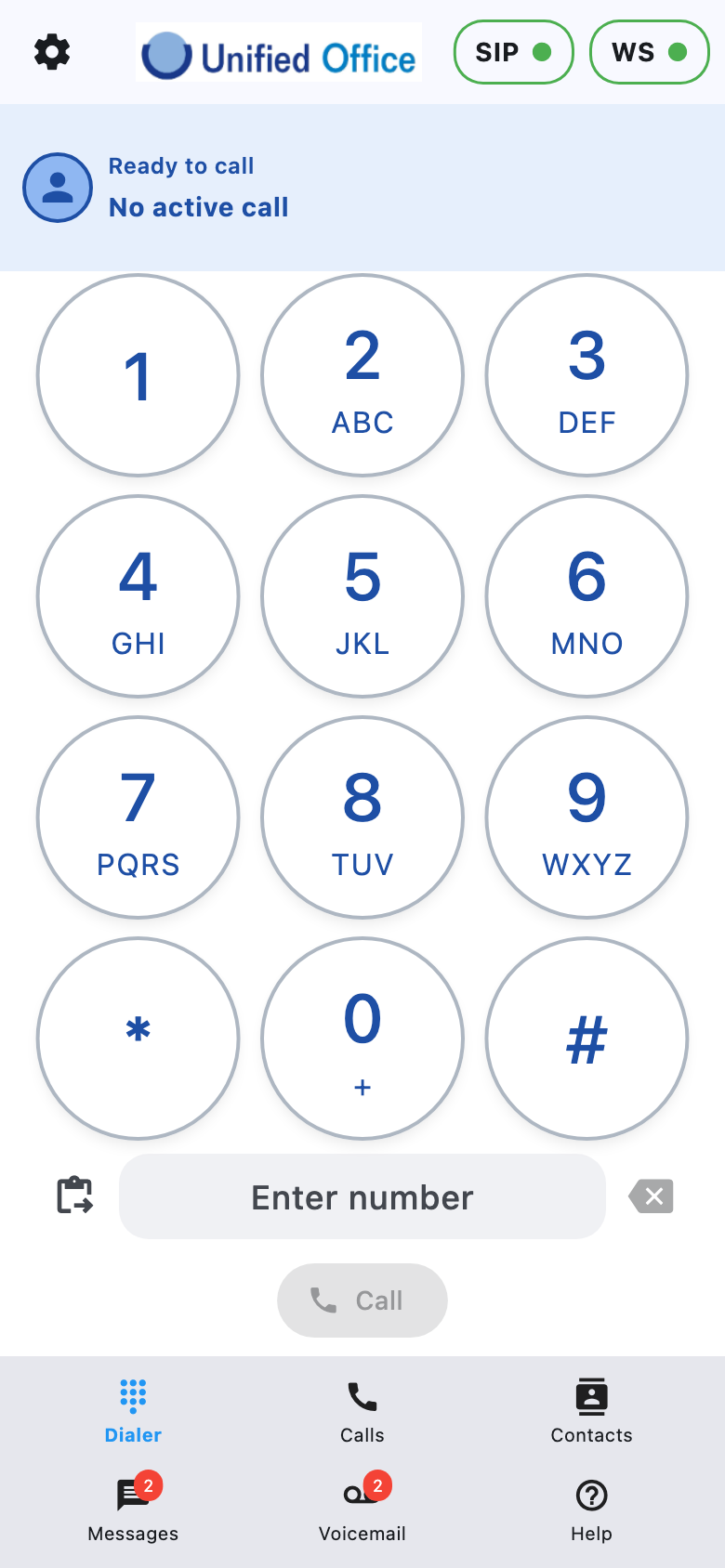
| Tab | What it’s for |
|---|---|
| Dialer | Place calls, answer/reject in the app, use the keypad during a call |
| Calls | Active calls and call history; call back, text, or save a contact |
| Contacts | Office and phone contacts; tap to dial |
| Messages | Business SMS/MMS conversations |
| Voicemail | Listen to, save, delete, and forward voicemail |
| Help | Opens this guide for the screen you’re on (see below) |
At the top of the main screens you’ll also see:
- A gear menu (settings)
- The UO logo
- SIP and WS status indicators (green = connected)
Help
Tap Help in the bottom navigation (next to Voicemail). UOPhone opens this user guide in an in-app browser, scrolled to the section that matches your current screen—for example Dialer (idle, incoming, or active call), Calls, Contacts, Messages, Voicemail, Login Settings, Call Settings, or About. Close the in-app browser to return to the app.
Getting started
1. Allow permissions when prompted
UOPhone asks for access it needs to work. Exact prompts depend on your platform:
| Permission | Why it’s needed |
|---|---|
| Microphone | Required for calls |
| Notifications | Incoming calls, messages, and voicemail alerts |
| Contacts (optional) | Show names instead of numbers; create/edit contacts from history or messages |
| Camera / Photos (optional) | Attach media to text messages |
If Contacts access is limited or denied, you can still call by number, but names may not appear on inbound calls or in history.
Platform note
- Android: Notifications, Microphone, and Bluetooth Connect are required. Denying them can block use of the app until you allow access (or exit). Contacts remain optional.
- iOS: The system prompts for Microphone, Notifications, Camera, and (separately) Contacts as needed.
- Windows: There is no mobile-style permission batch screen; grant microphone access if Windows asks when you place a call. Device contacts integration is not available (see Contacts).
2. Sign in (Login Settings)
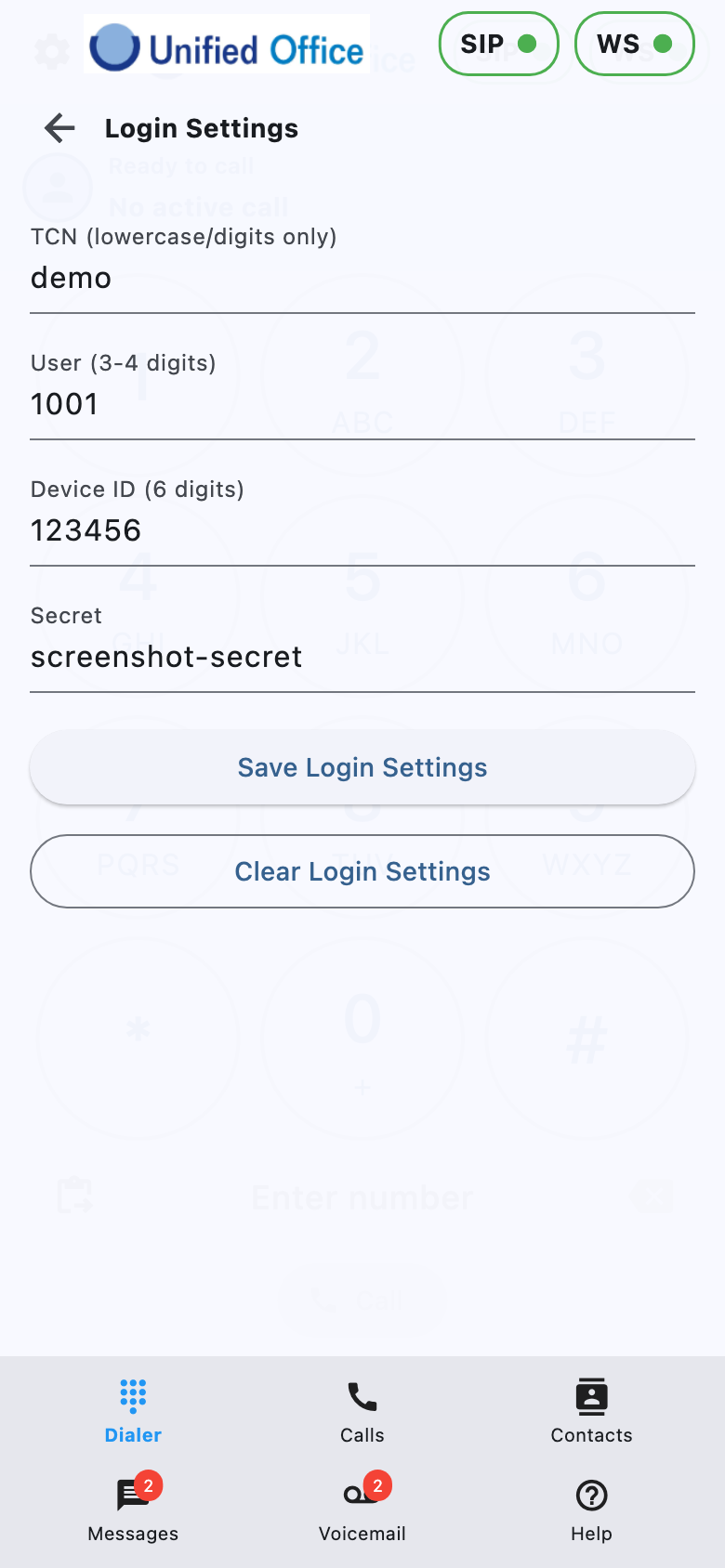
On first launch—or any time from the gear menu → Login Settings—enter:
- TCN (your company / system code)
- User (your extension, typically 3–4 digits)
- Device ID (6 digits)
- Secret (password provided by your administrator)
Then tap Save Login Settings. Wait for registration; when SIP and WS show connected, you’re ready.
Use Clear Login Settings only if you need to remove saved credentials from this device. That also disconnects this installation: the app unregisters from push notifications (so this device should stop receiving ringing pushes), stops SIP and the server link (WS), and turns the SIP / WS indicators off—while leaving the app open so you can sign in again.
3. Stay signed in / sign out
- Gear → Logout and Exit disconnects this installation the same way (including push unregister on mobile so the device should stop ringing), then closes the app. Confirm when prompted.
Making and receiving calls
Place a call
- Open the Dialer tab.
- Enter a number on the keypad (or paste), or choose a contact / history entry that fills the dialer.
- Tap Call.
Your outbound line must be registered (SIP connected) and linked to the server (WS connected).
Platform note — Windows
You can also dial with the physical keyboard (0–9, *, #) when the Dialer is focused.
Answer or decline a call
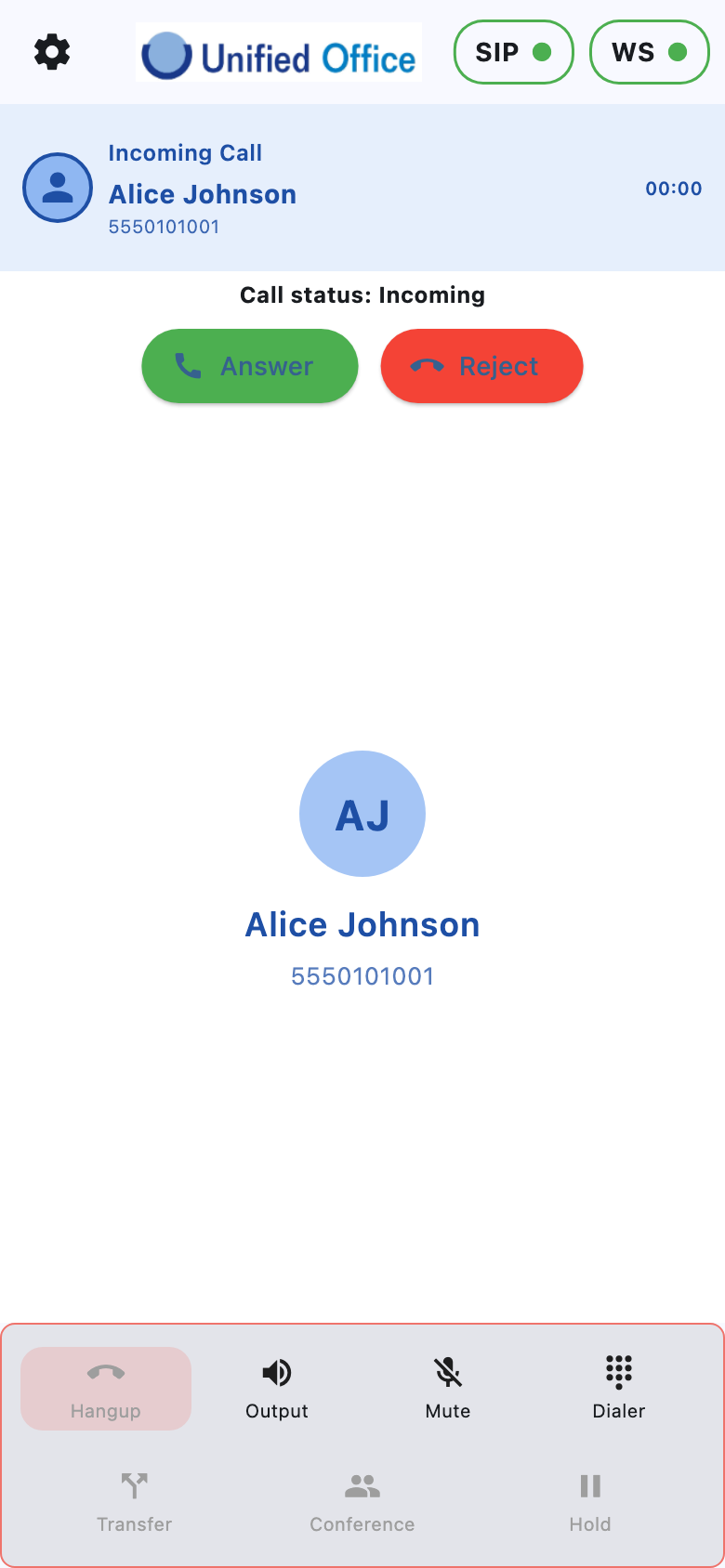
While using UOPhone (app open):
- On Android and Windows, the Dialer shows Incoming Call—tap Answer or Reject.
- On iOS, the system incoming-call UI (Apple CallKit) is used even when the app is in the foreground, so you hear the normal iPhone ringtone (subject to Silent/Focus) and answer or decline there.
When the app is in the background or the device is locked:
How you answer depends on the platform (see the note below). Caller name and number appear when the network provides them (and when contacts access allows matching names).
Desk phone + softphone together:
If your extension also rings a desk phone, answering on the desk phone should stop ringing on UOPhone. You do not need to answer on both.
Platform note — Incoming call UI
- iOS: Incoming UOPhone calls use Apple CallKit in the foreground, background, and on the lock screen. Answer or decline as you would a normal phone call. The system ringtone and Silent / Focus / Do Not Disturb settings apply. UOPhone calls are not added to the iPhone Phone app’s Recents list.
- Android: An incoming-call notification (via push) can wake the app; answer or decline from the notification / in-app Incoming Call screen. The system call-style notification should clear when the call ends. You can open the system settings for that notification channel from related prompts when available.
- Windows: Incoming calls appear in the app (Dialer). There is no separate system phone UI like CallKit.
During a call
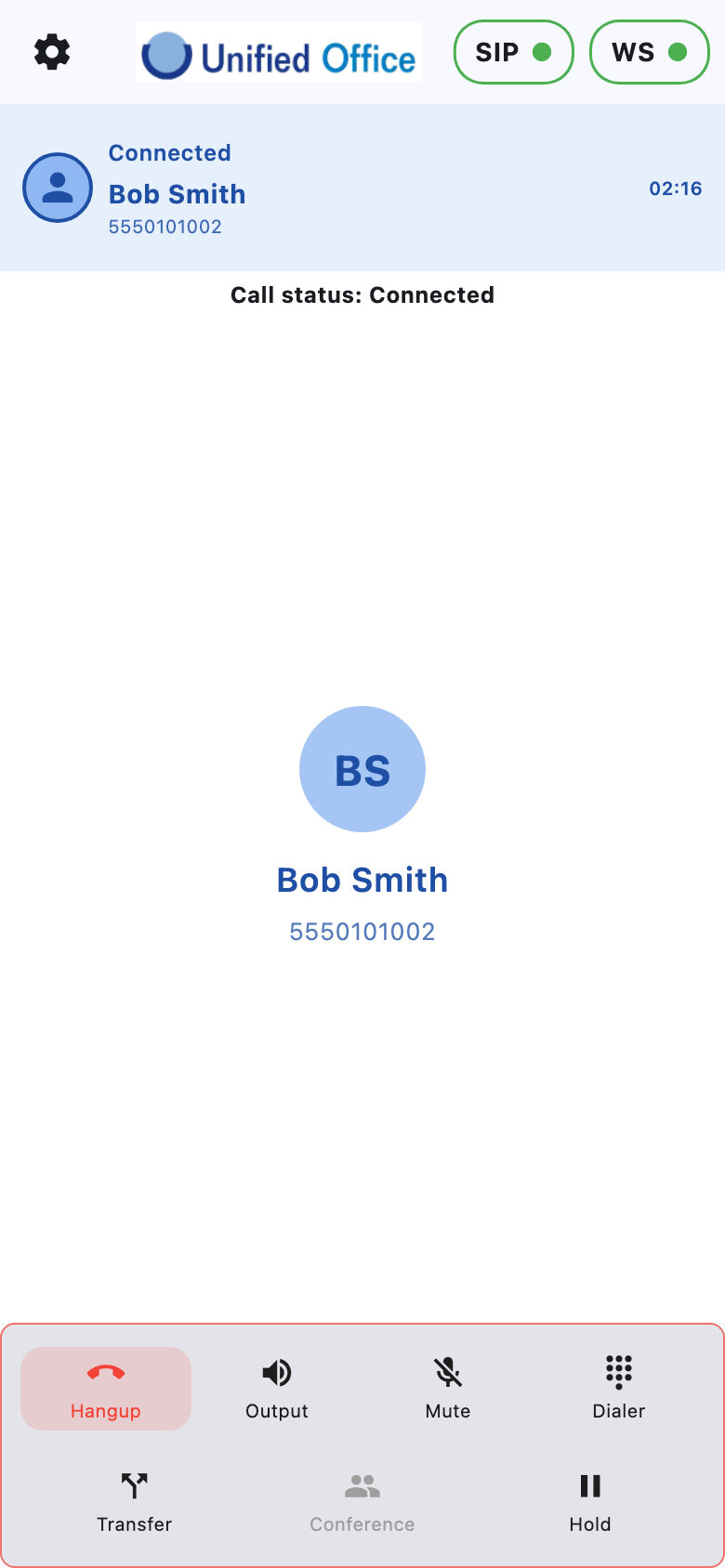
While a call is active, the bottom bar switches to call controls:
| Control | What it does |
|---|---|
| Hangup | Ends the call (or all legs when appropriate) |
| Output | Choose audio route (earpiece, speaker, Bluetooth—see Bluetooth & audio) |
| Mute / Un-Mute | Turns your microphone off/on |
| Dialer | Opens the keypad to send tones (DTMF) or start another line |
| Transfer | Send the caller to another number (see below) |
| Conference / Merge | Start or join a conference (see below) |
| Hold / Resume | Place the call on hold or take it back |
Hold and a second call
- On an active call, tap Hold.
- Enter a new number on the Dialer and tap Call (or use Contacts / Calls).
- The first call stays on hold; manage held lines from the Dialer (resume or hang up that line).
To return to the held party, tap Resume.
Call waiting (second incoming call)
If someone calls while you’re already on a UOPhone call, you can answer the waiting call. Typical flow:
- Answer the waiting call (active call goes on hold).
- Switch between lines with Hold / Resume, or create a conference (below).
- Hangup ends the call(s) as designed for the current state—when merged, hanging up should disconnect the conference parties.
UOPhone supports two lines for waiting / merge scenarios.
Conference / merge
- Put the first call on hold and connect a second call (or answer call waiting).
- When a second live party is connected, use Conference, then Merge when the app enables it.
- Use Hangup to end when finished.
Transfer (blind or attended)
- On an active call, tap Transfer.
- Optionally pick a contact, or type the Number to transfer to.
- Choose:
– Blind — send the caller immediately to that number and end your involvement.
– Attended — you speak to the transfer target first, then complete the handoff.
During an attended transfer you may see Connect (complete) and Return (cancel and go back). Follow the on-screen labels for the current step.
Keypad tones (DTMF)
Open Dialer during a call and press digits to send tones (menus, extensions, etc.).
Bluetooth & audio output
During a live UOPhone call, use the call bar’s audio control to choose where sound plays. Options that are available right now appear in the list.
| Option | Typical use |
|---|---|
| Earpiece | Handset-style private listening (mobile) |
| Speaker | Hands-free through the device speaker |
| Bluetooth | Paired headset, earbuds, or car hands-free (when the OS offers a call-capable Bluetooth route) |
A check mark shows the route currently in use.
Platform note — Audio routes
- iOS & Android: Full Output picker with Earpiece, Speaker, and Bluetooth when available. Pair headsets in the OS Bluetooth settings first; UOPhone does not manage pairing. Bluetooth appears only for call-capable devices (often Hands-Free / HFP). Music-only accessories usually do not appear.
- Windows: Speaker on/off toggle only—no Earpiece / Bluetooth picker in the app.
How Bluetooth works (mobile)
-
Pair in system Settings first
Connect your headset or car audio in the device Bluetooth settings. UOPhone uses devices the system already knows. -
Bluetooth appears only when usable for the call
If nothing is connected—or the accessory is music-only—you will usually see only Earpiece and Speaker. -
Automatic preference when a headset connects
On incoming answer, UOPhone prefers Bluetooth if a call-capable device is already connected; otherwise it defaults to the earpiece, not speaker (it should not jump to speaker on its own).
If Bluetooth becomes available during a call, UOPhone typically switches to Bluetooth automatically—unless you already manually chose Earpiece or Speaker for this call. On Android, call audio can also auto-connect over SCO when a suitable headset is available. -
Your manual choice is respected
If you pick Earpiece or Speaker while Bluetooth is connected, that choice sticks for the call. -
If Bluetooth disconnects mid-call
Audio returns to the previous non-Bluetooth route (earpiece or speaker) when the app can remember it. -
Remembered across calls
Your preferred route (including Bluetooth when still available) is kept for later calls in the same app session when the device list still supports it.
Platform note — iOS CallKit answer
When you answer from the lock screen, iOS/CallKit activates audio first; UOPhone then applies the desired route (Bluetooth if connected, otherwise earpiece). You can still change output afterward with Output once you’re in the app.
Tips
- For best call quality on Bluetooth, use a headset that supports phone calls (not only music playback).
- If audio stays on the handset after you expected the headset: open Output and tap Bluetooth, or briefly reconnect the accessory in system Settings.
- Car audio and some accessories may appear under Bluetooth in this picker.
- Apple CarPlay and Android Auto app controls are not part of UOPhone today; Bluetooth call audio to a car kit can still work when the OS offers that route.
UOPhone vs your regular cell calls
UOPhone runs as a VoIP softphone. Your device’s native Phone / cellular dialer is separate.
| Situation | What happens |
|---|---|
| You’re on a UOPhone call and accept a cellular call | Behavior depends on platform (see note). |
| You’re on a cellular call and UOPhone wants to ring | Behavior depends on platform (see note). |
| In-app when blocked by a cell call | You may see a message asking you to end the phone call before answering UOPhone. |
If a UOPhone call drops unexpectedly when answering a cellular call, hang up the cell call and dial back from Calls history if needed.
Platform note — Cellular vs UOPhone
- iOS: Answering a native Phone call typically holds UOPhone; when the cell call ends, UOPhone can resume. Incoming UOPhone while on a cell call may wait until the cell call ends, then offer the business call again. Background ringing relies on iOS push/VoIP wake—keep Notifications allowed.
- Android / Windows: There is no equivalent automatic hold/queue with the native cellular Phone app. Coordinate manually if both ring, and leave notifications enabled on Android for reliable wake-up.
Calls history
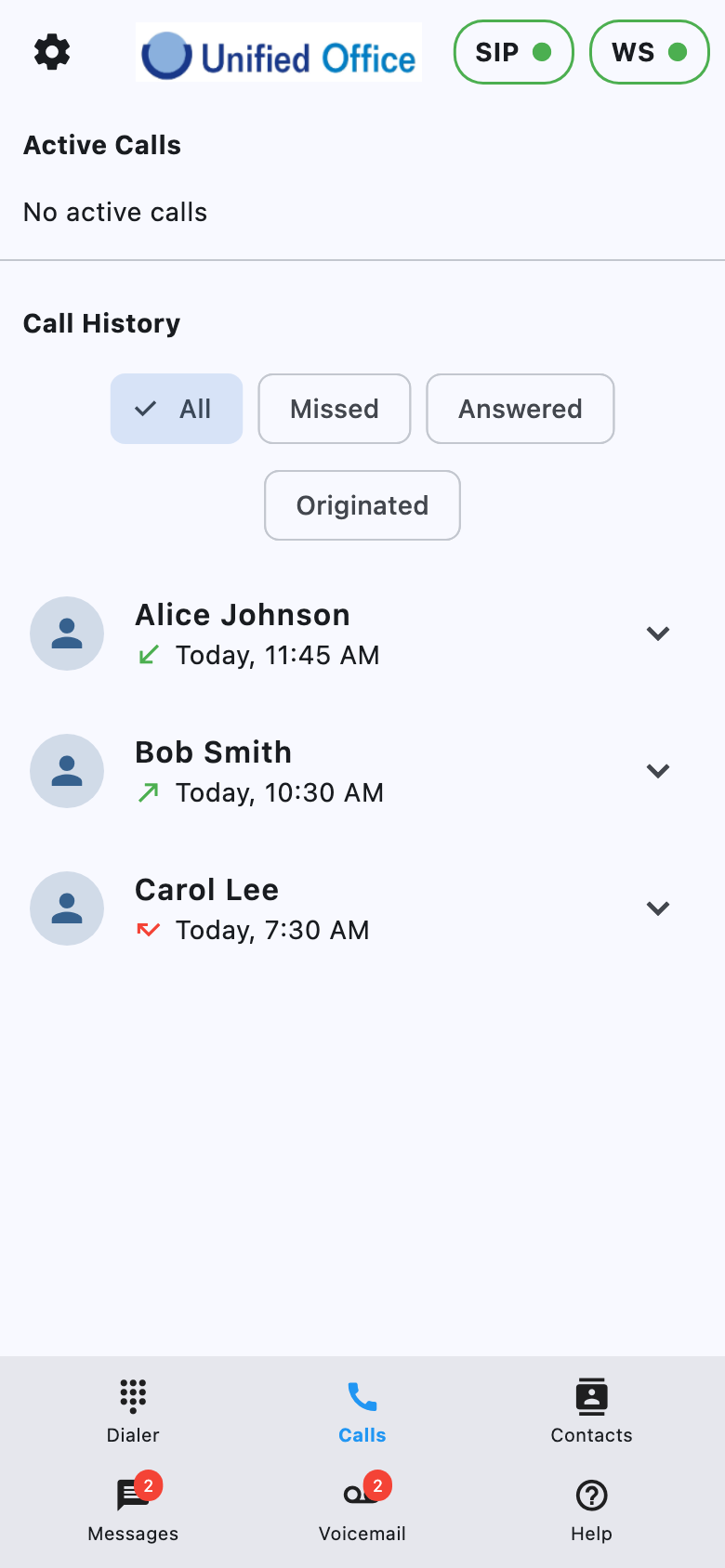
Open the Calls tab.
- Active Calls — anything in progress right now.
- Call History — past calls, with filters:
- All
- Missed
- Answered
- Originated (outbound)
Expand a row for details (direction, time, duration / missed), then:
- Call that person again
- Text them (opens Messages)
- Create contact or Edit contact (if Contacts access is allowed)
Returning to Calls from another tab resets the filter to All.
Contacts
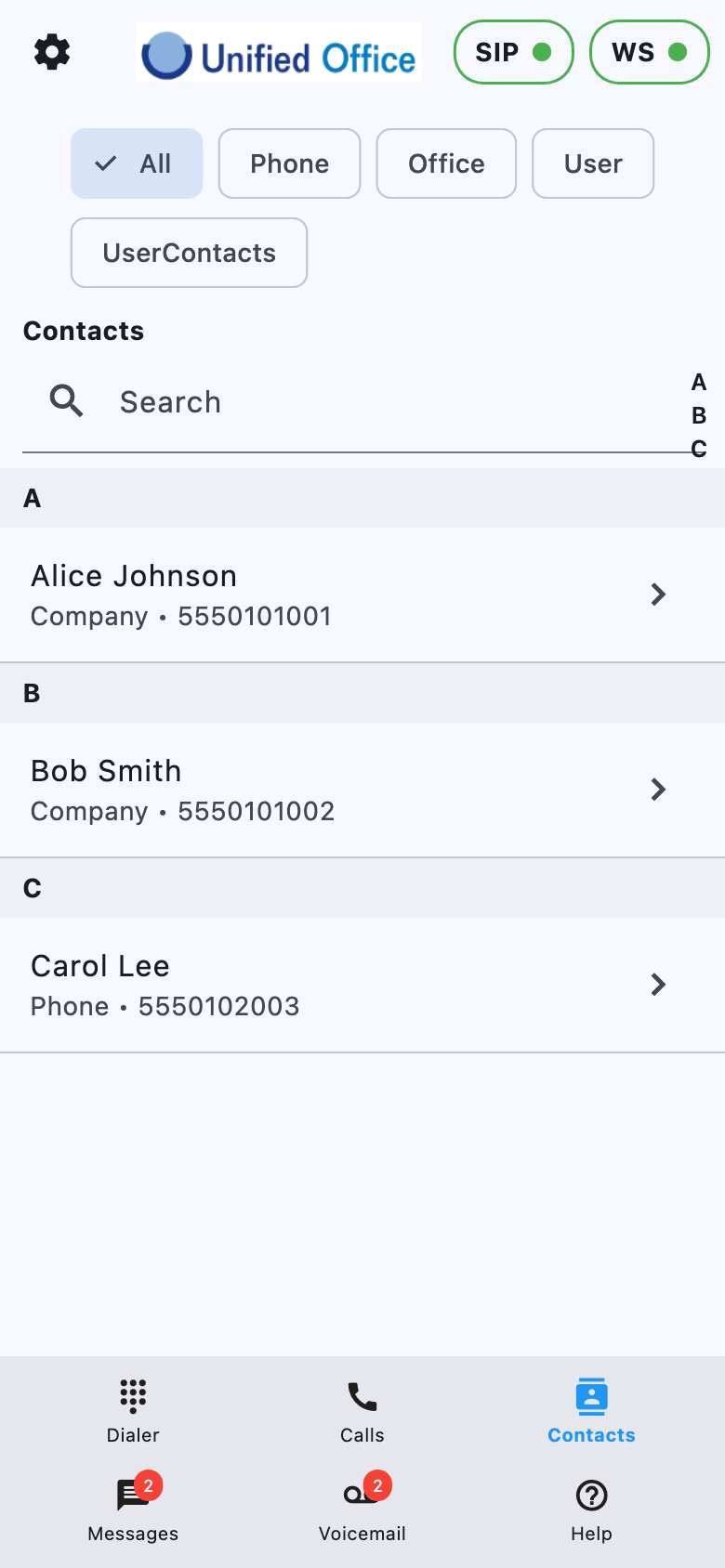
Open Contacts.
- Filter: All, Phone, Office, User, UserContacts
- Search and A–Z jumping
- Refresh to reload device contacts (mobile)
- Tap a person → choose a number → dialer is ready
Create or edit a phone contact
If UOPhone has Contacts access:
- From Calls history: Create contact / Edit contact
- From Messages: long-press a conversation (or the thread header) to create/edit
Office directory entries are for lookup/dialing; saving/editing applies to your device address book contacts.
Platform note — Contacts
- iOS & Android: Optional device address book; name matching on calls; create/edit from Calls or Messages when permission is granted.
- Windows: Office/user directory lookup and dialing are available; there is no device address-book create/edit.
Messages (SMS / MMS)
Conversation list
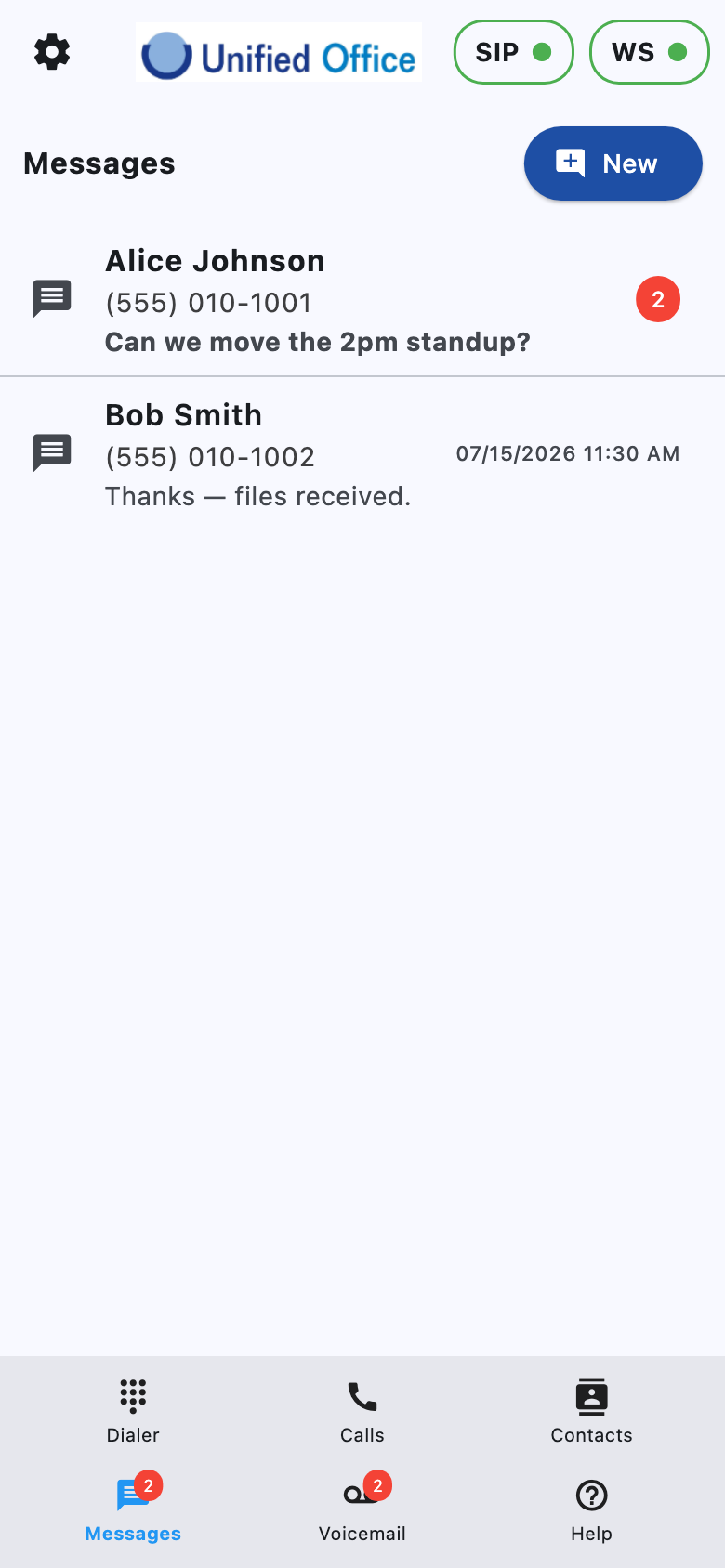
Open Messages.
- Unread threads are emphasized; the tab can show a badge count.
- Tap New to start a conversation.
- Long-press a row (when Contacts access is available) to create/edit a contact.
Platform note — Delete conversation
- iOS & Android: Swipe a conversation to delete it from your list.
- Windows: Swipe-to-delete is not available; use the controls provided on the conversation tile if present.
New message
- Tap New.
- Choose Originating Text Number (your business number).
- Pick a contact or enter a To Number (10 digits).
- Tap Start.
In a thread
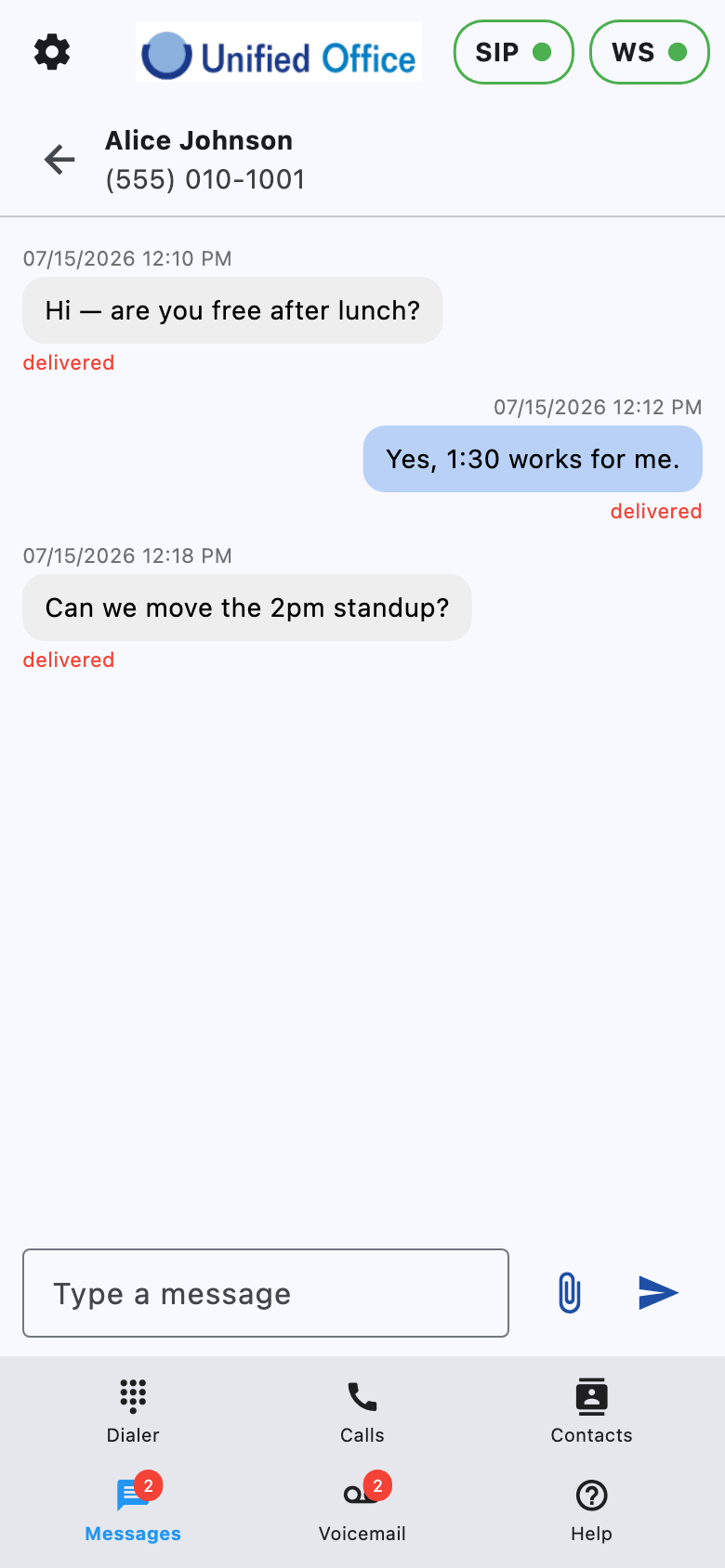
- Type in Type a message and send.
- Attach images, video, or audio when available.
- If an attachment is too large, the app may offer to Send a link instead.
- Tap media to open; long-press an image to copy when supported.
Notification banners for new messages appear when the app is in the background (mobile). Tapping a message notification opens Messages.
Voicemail
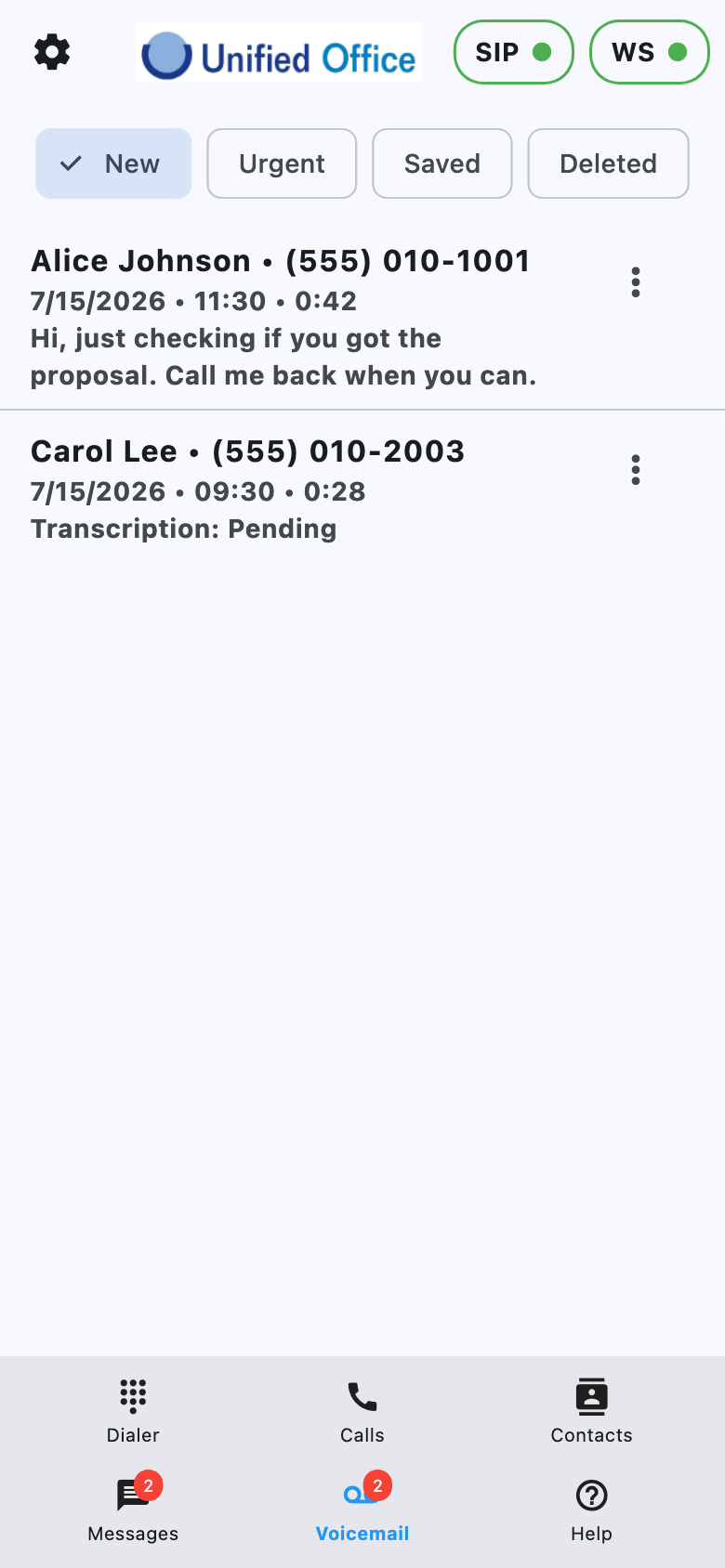
Open Voicemail.
Folders:
| Folder | Meaning |
|---|---|
| New | Inbox (unplayed messages are emphasized) |
| Urgent | Marked urgent |
| Saved | Kept messages |
| Deleted | Removed from active inbox |
For each message you can:
- Play — listen (use the player bar; pause and stop are available while playing)
- Call — return the call
- Save — move to Saved (required to keep a message there—playing alone does not auto-move it)
- Delete — move to Deleted
- Forward — send to another extension
- Urgent — mark / unmark urgent
Unplayed new voicemail contributes to badges where the platform supports them. Playing a message marks it as played, but it stays in New until you Save, Delete, or otherwise move it. Tapping a voicemail notification opens this tab.
Saved
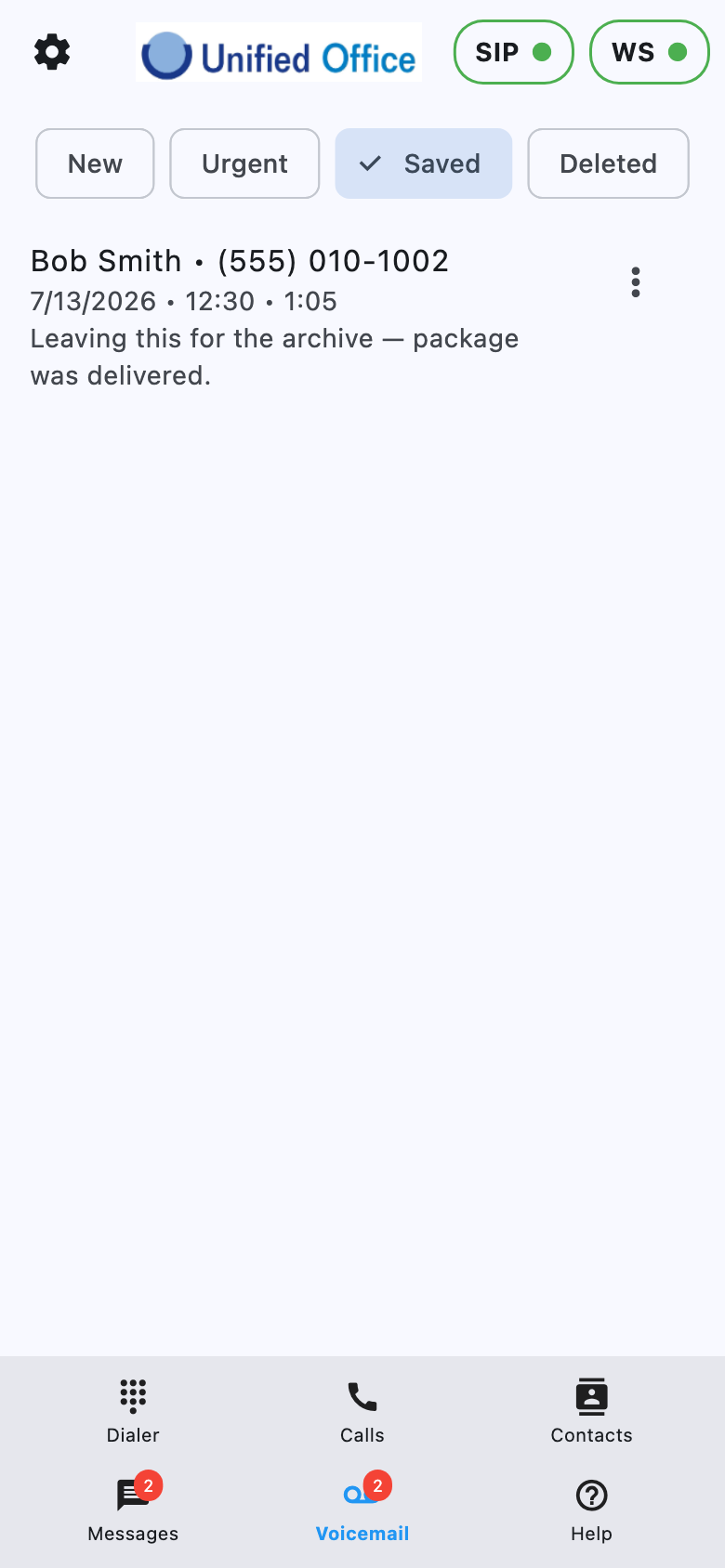
Use the Saved folder for messages you want to keep after clearing the inbox. Move items here with Save; they are not moved automatically when you finish listening. The same play / call / forward actions are available there.
Platform note — Voicemail player
- All platforms: Pause and stop work while a message is playing.
- Android: The player bar can also include a speaker/earpiece control and a dedicated call-back action while listening.
Call Settings
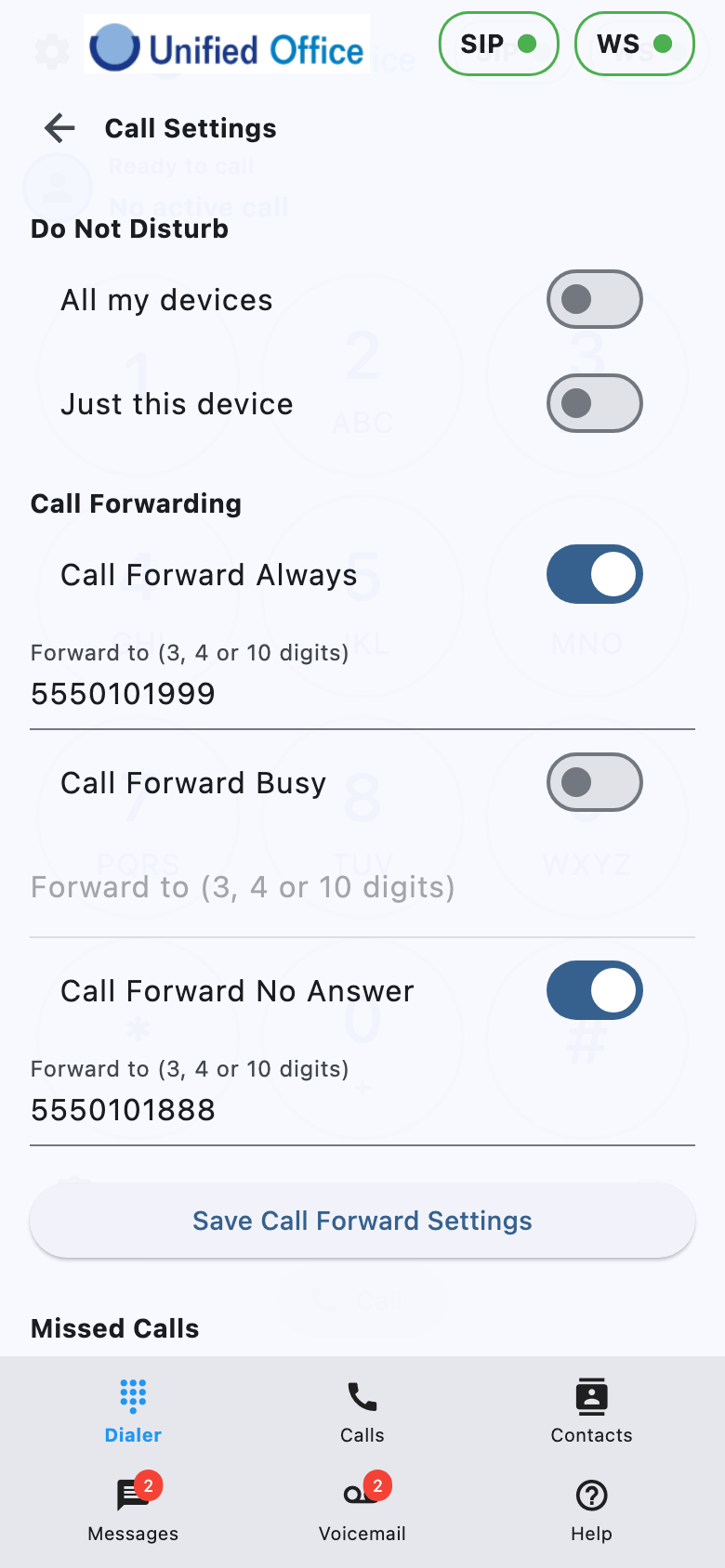
Gear → Call Settings (requires a live server connection).
Do Not Disturb (DND)
- All my devices — silences ringing everywhere your extension is registered.
- Just this device — silences only this installation (unavailable while global DND is on).
Turn DND off the same way you turned it on. If “all devices” was enabled, clear that first so this device can leave DND cleanly.
Call forwarding
Toggle and save:
- Call Forward Always
- Call Forward Busy
- Call Forward No Answer
Enter Forward to as a 3-, 4-, or 10-digit destination, then Save Call Forward Settings.
Missed Calls preference
Choose how missed-call reporting is counted:
- Calls I did not answer
- Calls no one answered
Notifications & badges
| Alert | When you see it |
|---|---|
| Incoming call | System phone UI and/or in-app Dialer (see Incoming call note above) |
| New Message | Background / lock screen on mobile; opens Messages |
| New Voicemail | Background / lock screen on mobile; opens Voicemail |
Platform note — Badges & alerts
- iOS: Home-screen app icon badge combines unread messages and unplayed inbox voicemail. Tab badges appear on Messages and Voicemail. For reliable ringing when the app isn’t open, leave notifications enabled and avoid force-quitting when possible.
- Android: Message and voicemail notifications via FCM; tab badges in the app. There is no separate app-icon badge path in the current client. Leave notifications enabled for reliable wake-up.
- Windows: A taskbar/tray badge reflects the same unread total; an alert sound can play when the count increases. There is no mobile-style lock-screen notification bridge for messages/voicemail.
About & support
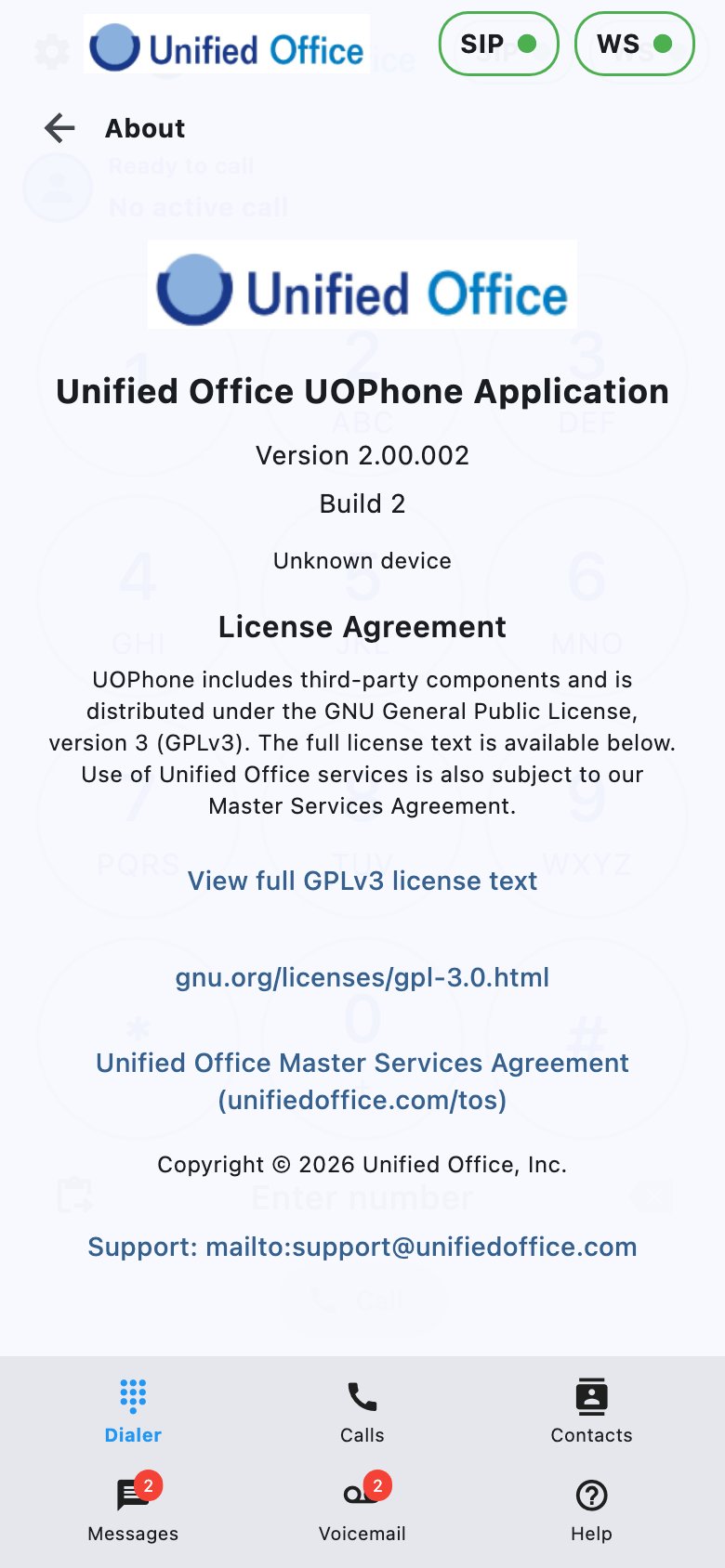
Gear → About:
- App name, version / build, and device information
- License and agreement links
- Support: support@unifiedoffice.com
Tips for everyday use
- Check that SIP and WS are green before dialing.
- Allow Microphone and Notifications (on mobile) for full calling.
- Allow Contacts on iOS/Android if you want names on notifications and history, and create/edit from Calls or Messages.
- Prefer answering either the desk phone or UOPhone, not both.
- If a business call arrives while you’re on a cell call (especially on iOS), finish or end the cell call—then answer or wait for UOPhone to offer the call again.
- Use Hold + second call for consult / transfer / conference flows the same way you would on a traditional multi-line phone.
- If ringing or voicemail badges seem stuck, open Messages/Voicemail, play or clear items, and ensure the device is online.
What this app is (and isn’t)
UOPhone is your Unified Office extension on phone or desktop: dialer, multi-line calling, SMS, voicemail, and presence settings (DND / forward).
UOPhone is not a replacement for your device’s native cellular Phone app, and it does not currently include CarPlay or Android Auto controls.